




Facebook is one of the largest social networks in the world, which also provides the ability to create and run advertising campaigns. To do this, you need access to Facebook advertising account . But what if you need to give access to the account to another person? In this article, we'll show you how to grant access to your Facebook Ads Manager, as well as what roles you can assign to your account.
Step 1: Open Facebook Ads Account
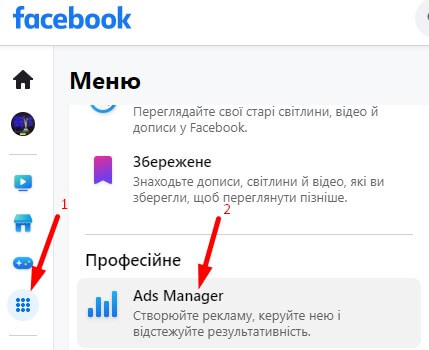
The first step is to open the Facebook advertising account in which you want to give access. To do this, go to your Facebook account, click on the 9 dots on the left side of the screen and find the "Professional" section. Find and click on "Ads Manager".
Step 2: Click on "Campaign Settings"
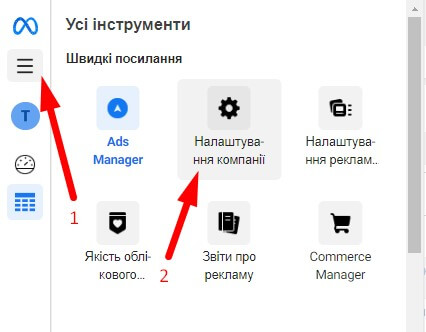
On the ad management page, find the "Campaign settings" tab in the top menu and click on it.
Step 3: Add a user
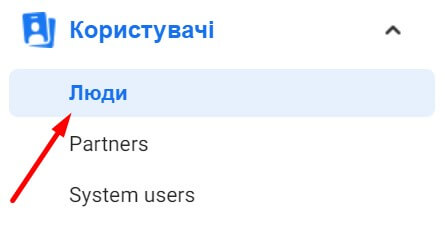
In the "Users" section, find the "People" subsection
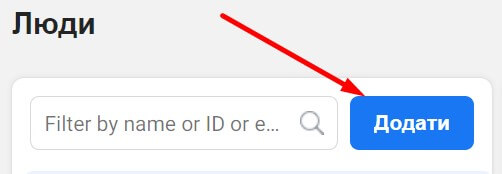
Find the "Add" button and click on it.
Step 4: Enter the user's email
Enter the email address of the user you want to give access to the Facebook ad account. Please note that in order to add a new user, it is necessary that he already has a Facebook account. If the user is not yet registered on Facebook, then he needs to first create an account.
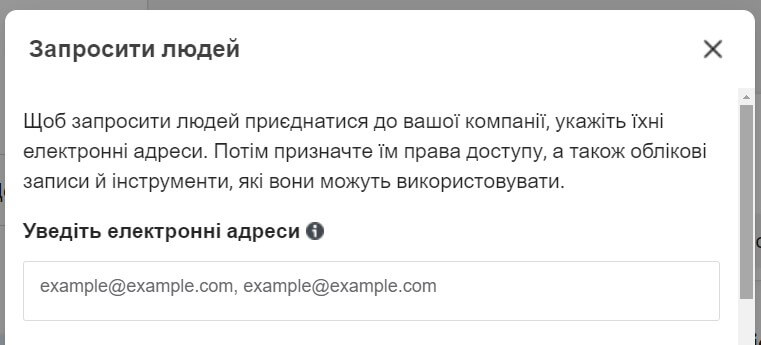
Step 5: Assign a Role
After entering the user's email, you will see a window with a role selection. Facebook has several roles that you can assign to a new user. Here are some of them:
- Admin : Has full access to everything in the Facebook ad account and can appoint other admins.
- Editor : Can create, edit, and delete advertisements, but does not have access to pay for advertisements.
- Analyst : can only view reports and results of advertising campaigns.
Choose a role according to what a new user needs to do in the Facebook Ads account. If you want a user to be able to create and manage ad campaigns, it's best to assign the user the editor or administrator role.
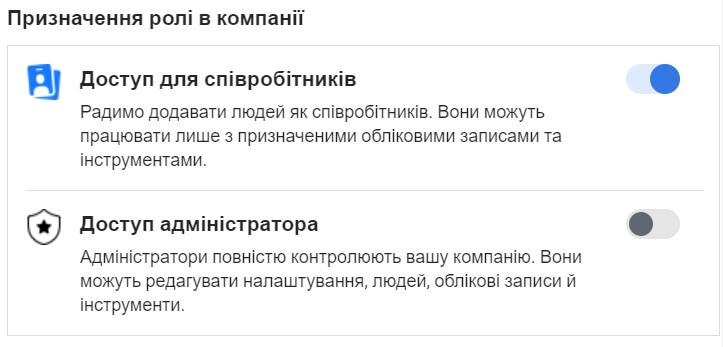
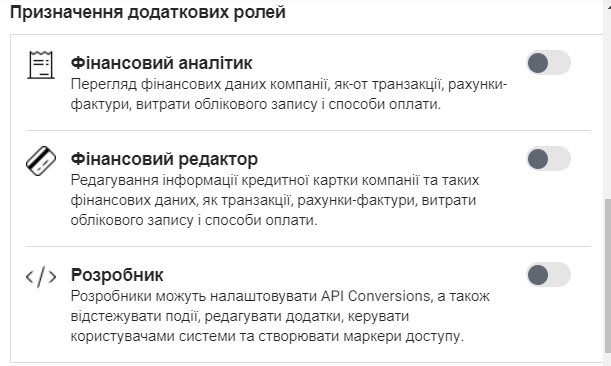
Step 6: Click on "Add"
After selecting the role, click on the "Add" button to send an invitation to the user.
Step 7: The user accepts the invitation
The user to whom you sent the invitation will receive a notification to their email or Facebook and will be able to accept the invitation. After he accepts the invitation, he will have access to the Facebook advertising account and will be able to work in it in accordance with the assigned role.
Now you know how to give access to the Facebook advertising account to another user. Remember that assigning roles is important to ensure that the user has only the rights that he needs to work in the Facebook advertising account. We hope you found this step by step guide helpful!


