




Nowadays, Facebook is one of the most popular social networks in the world, where hundreds of millions of people spend their time every day. But Facebook is not only a place for communication, but also a powerful tool for business. If you plan to use Facebook to advertise your brand or product, you need access to an advertising cabinet. In this article, we will explain in detail how to access the Facebook advertising cabinet and what roles exist in the account, as well as how to create your first ad.
Step 1: Create a Facebook Business Manager account
The first step to gain access to the Facebook advertising cabinet is to create a Facebook Business Manager account. To do this, follow these step-by-step instructions:
- Go to the page https://business.facebook.com/ and click the Create Account button.
- Enter your business email address and click Next.
- Enter your personal information, including first and last name, and click Create Account.
- Verify your account by following the on-screen instructions.
Step 2: Add your Facebook business account to Business Manager
Once you've created a Business Manager account, you can add your Facebook account to that account. To do this, you need to perform the following actions:
- Go to Business Manager Settings, find the “Accounts” section.
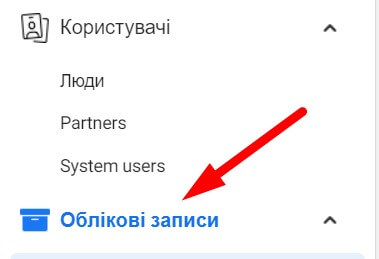
- Select the type of account you'd like to add — Page, Ad Cabinet, or Instagram account — and enter the appropriate information.
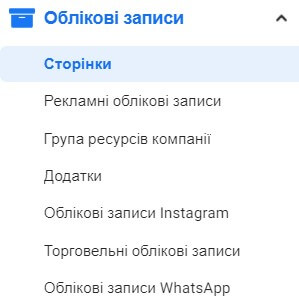
- Click "Add".
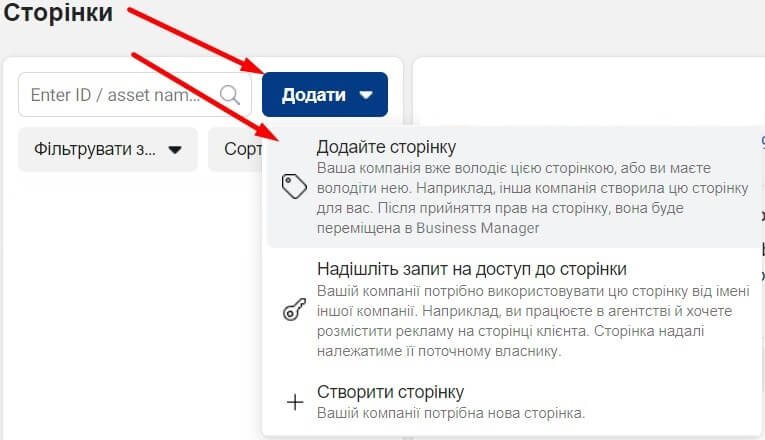
Step 3: Assign roles to users in the account
After you've added your business account to Business Manager, you can assign roles to users in that account. There are several roles that can be assigned to users on an account:
Table: Roles in the Facebook Business Manager account
| Role | Description |
| Account owner | Has full access to the entire account and can add or remove users. |
| Resource administrator | Has access to and can manage certain resources, such as campaigns or pages. |
| Analyst | Has access only to statistics and analytics of advertising campaigns. |
| Advertising manager | Has access to create and manage ad campaigns, but does not have access to other resources in the account. |
To assign roles to users in an account, follow these steps:
- Go to Business Manager and select "Users" from the menu on the left.

- Click the Add New Users button and enter the user's email address.
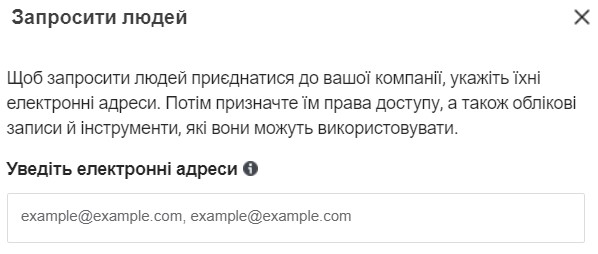
- Select the role you want to assign to the user.
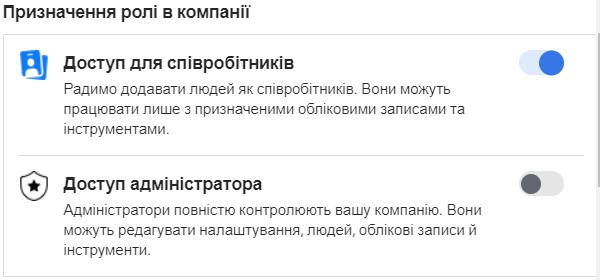
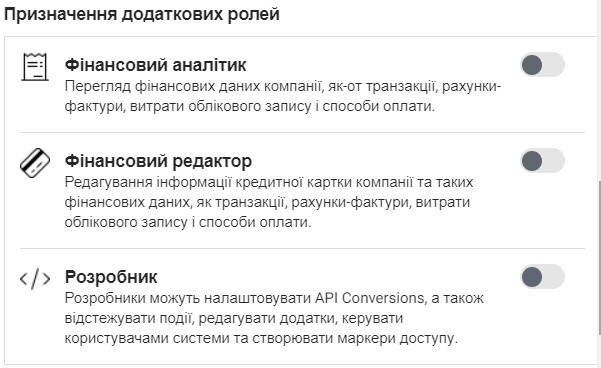
- Click “Add” and verify that the user has received an invitation to the email address.
Step 4: Access your Facebook ad account
Once you've created a Business Manager account, added your Facebook business account, and assigned roles to users in your account, you're ready to access your Facebook ad account. To do this, you need to perform the following actions:
- Go to Business Manager and select “Advertising campaigns” in the menu on the left.

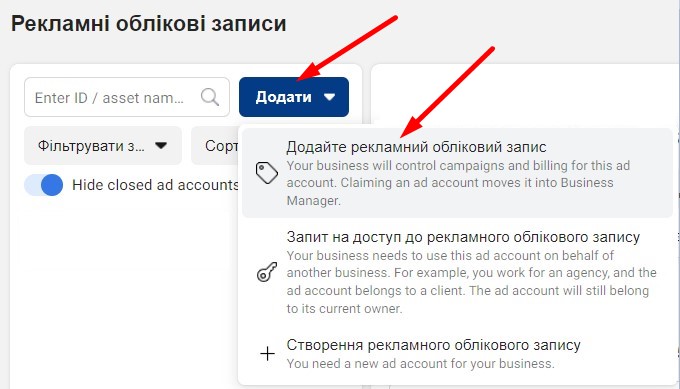
- Choose an advertising cabinet:
- Click the “Add” ⇾ “Add ad account” button.
-
- Enter your ad account ID.
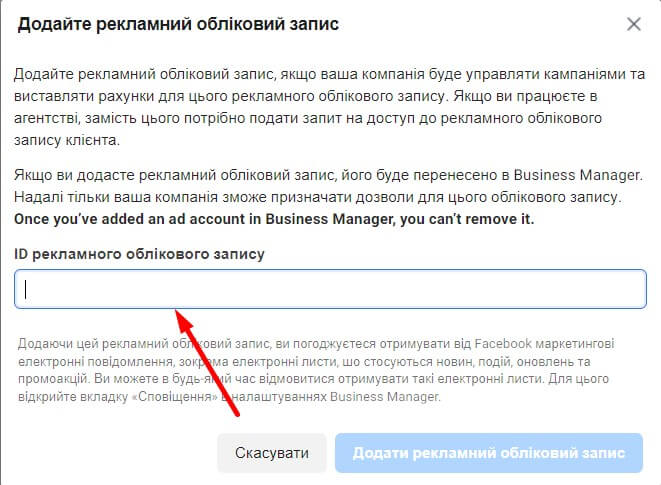
"You can easily find the advertising account id by going to Ads manager and looking for the 15 digits after the word "act" in the page address. This will be the id of your advertising account."

- Click the Add User button and select the user you want to grant access to.
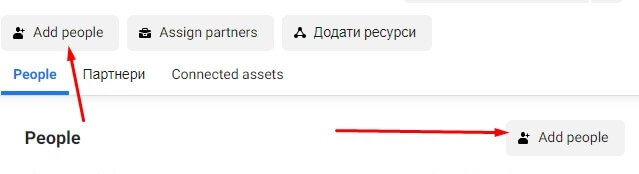
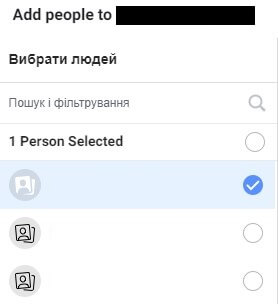
- Assign the desired role to the user and click "Assign".
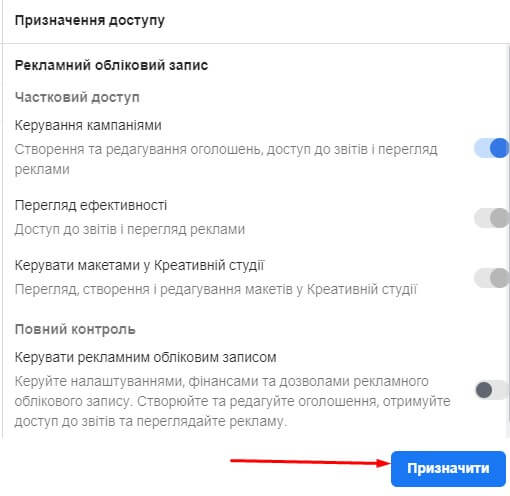
Now the user will have access to the Facebook advertising account and will manage advertising campaigns according to the role assigned to him.
Step 5: Create a Facebook ad campaign
Now that you have access to your Facebook ad account, you can start creating your first ad campaign. To do this, you need to perform the following actions:
- Go to the advertising cabinet and click the "Create campaign" button.
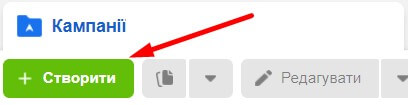
- Choose the goal of your campaign, such as increasing the number of clicks on the site or increasing brand awareness.
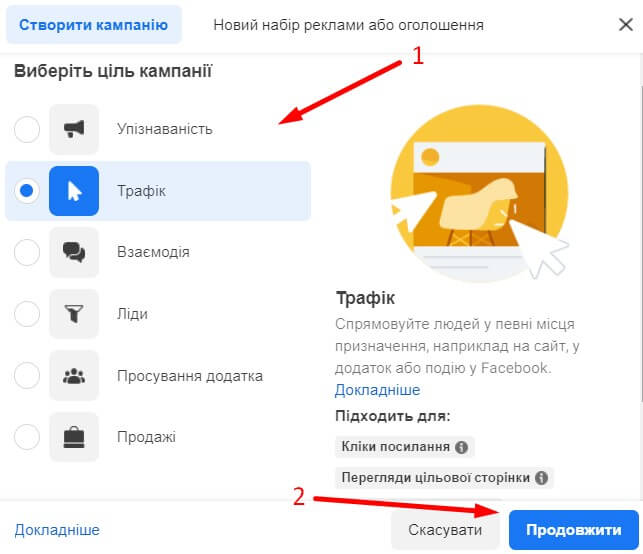
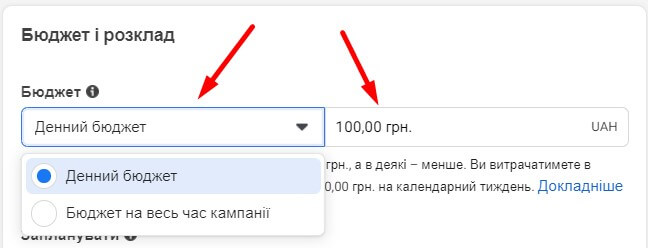
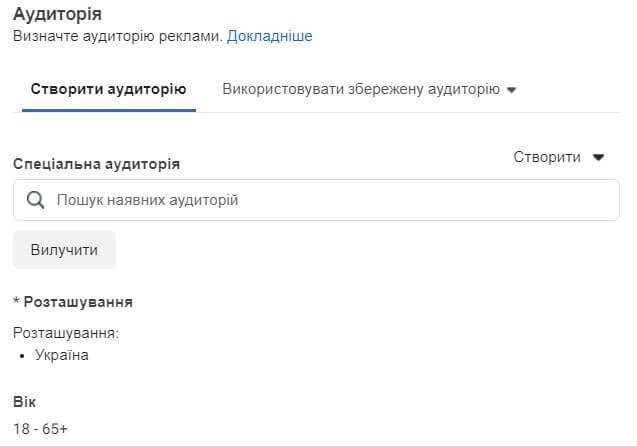
- Specify your budget, campaign schedule, and audience settings.

- Create ads that will be displayed to your audience.
Follow these tips to create an effective ad campaign:
- Define your goal – Decide in advance what you want to achieve with your campaign.
- Choose your audience – Determine who your target audience will be and tailor your campaign to them.
- Create creative ads – Create ads that engage your audience and make them click on them.
- Test and optimize – Test different ads and campaign settings to determine what works best and optimize your campaign based on those results.
Table: Audience setting options in a Facebook advertising campaign
| Option | Description |
| Demography | Select the age, gender, language, location, and other demographic characteristics of your audience. |
| Interests | Customize ads based on the interests of your target audience as they express themselves on social media. |
| Behavior | Customize ads based on your target audience's behavior, such as shopping, travel, mobile usage, and more. |
| Retargeting | Show ads to those users who have already visited your site or performed some actions on it, for example, added products to the cart or placed an order. |
| Similar audiences | Create an audience that looks like your target audience and tailor your ads to that audience. |
Conclusion
Access to the Facebook advertising cabinet gives you the opportunity to create effective advertising campaigns that can help your business reach new heights. We hope this step-by-step guide helped you access your Facebook ad account and create your first ad campaign. Follow the tips and use the audience customization options to optimize your ads and achieve maximum results.


